Login & Authentication Guide
Complete guide to accessing the Digital Signage Platform with email/password login, Google authentication, email verification, and password reset.
Table of Contents
Accessing the Platform
- Open your web browser (Chrome, Firefox, Safari, or Edge)
- Navigate to the platform URL provided by your administrator
- You will see the login screen
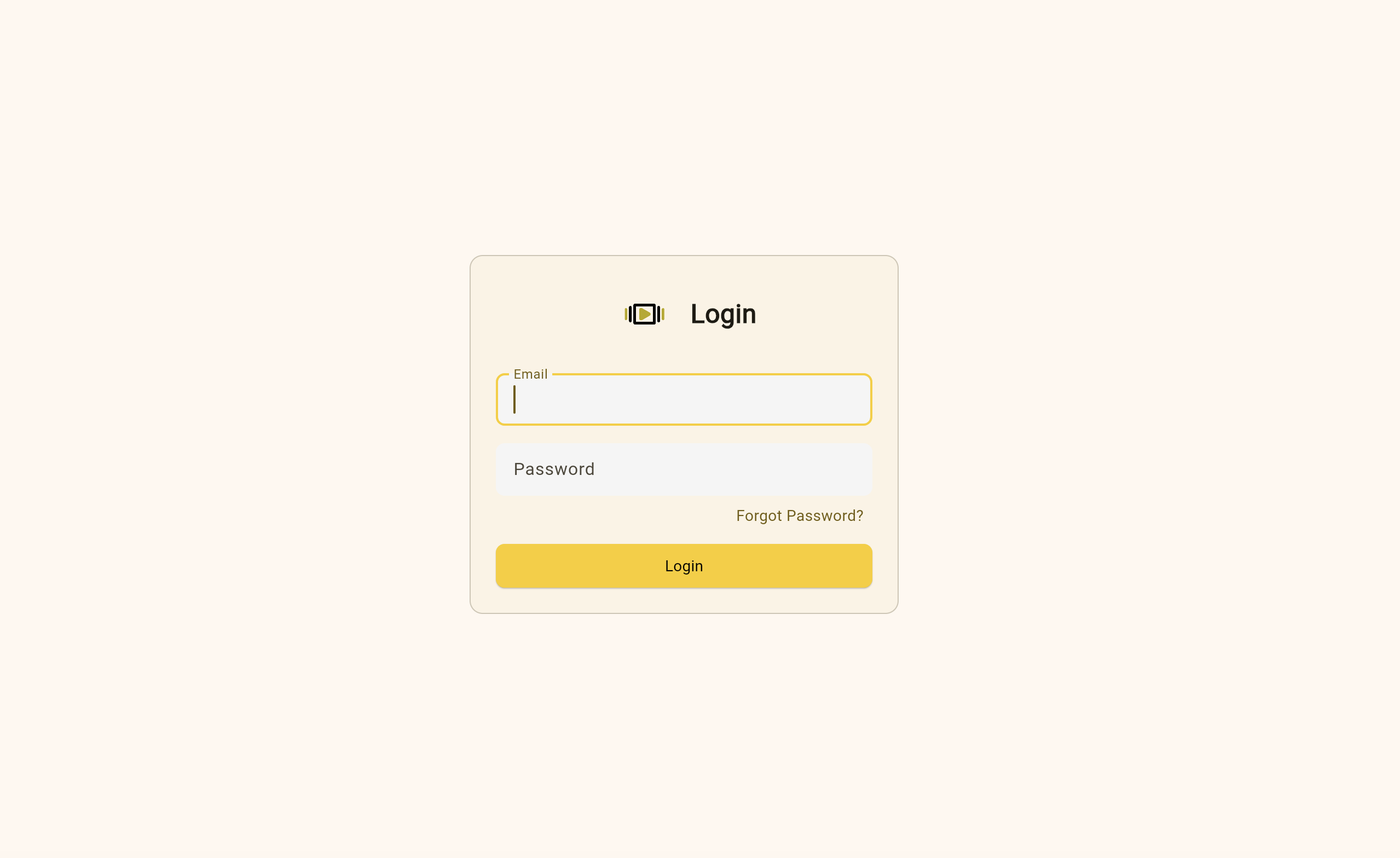
Screenshot placeholder: Login screen showing email and password fields with logo and branding
Logging In with Email and Password
Follow these simple steps to log in:
Step 1: Enter Your Credentials
- In the Email Address field, type your registered email address
- In the Password field, type your password
- Make sure Caps Lock is not accidentally turned on
- Passwords are case-sensitive
Step 2: Sign In
- Click the "Login" or "Sign In" button
- Wait a moment while the system verifies your credentials
Step 3: Access Dashboard
- If your credentials are correct, you will be redirected to the dashboard
- You are now logged in and ready to use the platform

Video placeholder: Short video (5-10 seconds) showing the complete login process from entering credentials to reaching the dashboard
First Time Login
If this is your first time logging in:
- You may be prompted to verify your email address
- You may need to complete an onboarding process
- You might be asked to join or create an organization
Logging In with Google (Optional)
If Google authentication is enabled for your account, you can use a faster login method:
Step 1: Click Google Sign-In
- On the login screen, look for the "Sign in with Google" button
- It typically has the Google logo and is prominently displayed
- Click the button

Screenshot placeholder: Google sign-in button highlighted on the login screen
Step 2: Google Authentication
- A new window or tab will open showing Google's login page
- If you're already signed in to Google:
- Select the Google account you want to use
- Click on your account
- If you're not signed in:
- Enter your Google email address
- Click "Next"
- Enter your Google password
- Click "Sign in"
Step 3: Grant Permission
- Google will ask you to grant permission to the application
- Review the permissions requested
- Click "Allow" or "Continue" to proceed
Step 4: Automatic Redirect
- You will be automatically redirected back to the platform
- You are now logged in using your Google account
- The dashboard will load
Benefits of Google Sign-In
- ✅ Faster login (no need to remember another password)
- ✅ Secure authentication through Google
- ✅ One-click access if already signed in to Google
- ✅ Automatic updates if you change your Google password
Important Notes
- You must use the same Google account each time
- Your email address in the platform will match your Google email
- Not all organizations enable Google authentication
Email Verification
For security, some accounts require email verification before you can fully access the platform.
When Email Verification is Required
- New account registration
- After an administrator creates your account
- After changing your email address
Verification Process
Step 1: Check Your Email
- After signing up or receiving your account, check your email inbox
- Look for an email with subject like "Verify Your Email" or "Activate Your Account"
- If you don't see it, check your Spam or Junk folder
Step 2: Click Verification Link
- Open the verification email
- Find the verification link or button
- Click on it
- Your browser will open and navigate to the verification page

Screenshot placeholder: Email verification screen with success message
Step 3: Confirmation
- You will see a confirmation message indicating your email is verified
- Click "Continue to Login" or similar button
- Log in with your email and password
If the Verification Link Expires
Verification links typically expire after 24-48 hours:
- Go to the login page
- Look for a "Resend Verification Email" link
- Enter your email address
- Click "Send"
- Check your email for a new verification link
Troubleshooting Email Verification
- Email not received: Check spam folder, verify email address is correct
- Link expired: Request a new verification email
- Link not working: Try copying and pasting the full URL into your browser
- Still having issues: Contact your administrator
Password Reset
If you forget your password, you can easily reset it:
Step 1: Access Password Reset
- On the login screen, click "Forgot Password?" or "Reset Password" link
- You will be taken to the password reset page
Step 2: Enter Your Email
- Type the email address associated with your account
- Click "Send Reset Link" or "Submit"
- A message will confirm that an email has been sent
Step 3: Check Your Email
- Open your email inbox
- Look for an email with subject like "Password Reset" or "Reset Your Password"
- Check spam folder if you don't see it within a few minutes
Step 4: Create New Password
- Click the password reset link in the email
- You will be taken to a page to create a new password
- Enter your new password in the first field
- Re-enter the same password in the confirmation field
- Make sure your password meets the requirements:
- Minimum length (usually 8 characters)
- Mix of uppercase and lowercase letters (recommended)
- Include numbers or special characters (recommended)
- Click "Reset Password" or "Save"
Step 5: Log In with New Password
- You will be redirected to the login page
- Use your email and new password to log in
- You're back in!
Password Reset Tips
- Choose a strong, unique password
- Don't reuse passwords from other websites
- Consider using a password manager
- Write down your password in a secure place
Troubleshooting Login Issues
"Invalid Credentials" or "Login Failed" Error
Problem: You see an error message saying credentials are incorrect.
Solutions:
- ✅ Double-check your email address for typos
- ✅ Verify your password is correct
- ✅ Make sure Caps Lock is not on
- ✅ Check for extra spaces before or after your email/password
- ✅ Try resetting your password
- ✅ Contact your administrator to verify your account is active
Page Won't Load or Keeps Spinning
Problem: The login page doesn't load or hangs after clicking login.
Solutions:
- ✅ Check your internet connection
- ✅ Refresh the page (press F5 or Ctrl/Cmd+R)
- ✅ Clear your browser cache and cookies
- ✅ Try a different browser
- ✅ Try accessing from a different device or network
- ✅ Check with your administrator if the platform is experiencing issues
Google Sign-In Not Working
Problem: Google authentication fails or doesn't appear.
Solutions:
- ✅ Verify Google sign-in is enabled for your account
- ✅ Make sure pop-ups are not blocked in your browser
- ✅ Try disabling browser extensions temporarily
- ✅ Clear browser cache and cookies
- ✅ Use email/password login instead
- ✅ Contact your administrator
Account Locked or Suspended
Problem: Message says account is locked or suspended.
Solutions:
- ✅ You may have exceeded login attempts
- ✅ Wait 15-30 minutes and try again
- ✅ Contact your administrator to unlock your account
- ✅ Check if your subscription or access has expired
Email Verification Required
Problem: You can't proceed without verifying email.
Solutions:
- ✅ Check your email for verification message
- ✅ Check spam/junk folder
- ✅ Request a new verification email
- ✅ Verify the email address in your account is correct
- ✅ Contact your administrator if you need help
Browser Compatibility Issues
Problem: Login page looks broken or buttons don't work.
Solutions:
- ✅ Use a modern, updated browser (Chrome, Firefox, Safari, Edge)
- ✅ Update your browser to the latest version
- ✅ Disable browser extensions that might interfere
- ✅ Try using incognito/private browsing mode
- ✅ Clear browser cache and cookies
Security Best Practices
Keep Your Account Secure
-
Strong Password
- Use at least 8 characters
- Mix uppercase, lowercase, numbers, and symbols
- Avoid common words or personal information
- Don't reuse passwords from other sites
-
Protect Your Credentials
- Never share your password with anyone
- Don't write passwords in easily accessible places
- Log out when using shared computers
- Be cautious of phishing emails
-
Regular Updates
- Change your password periodically
- Update your email address if it changes
- Keep your recovery information current
-
Monitor Your Account
- Report suspicious activity immediately
- Log out after finishing your session
- Review account activity if available
Quick Reference
Login with Email/Password
- Go to login page
- Enter email and password
- Click "Sign In"
Login with Google
- Click "Sign in with Google"
- Select Google account
- Grant permissions
- Auto-redirect to dashboard
Reset Password
- Click "Forgot Password"
- Enter email address
- Check email for reset link
- Create new password
- Log in with new password
Getting Help
When to Contact Support
- Can't access your account after trying troubleshooting steps
- Need to change the email address on your account
- Forgot which email you used to register
- Experiencing technical errors
- Need your account unlocked
- Have questions about account permissions
Support Contacts
- Administrator: [Contact Info]
- Technical Support: [Contact Info]
- Help Desk: [Contact Info]
Next Steps
After successfully logging in:
- 📱 Proceed to the Media Management Guide
- 📺 Learn about Screen Management
- 📰 Explore Publications
Last Updated: [Date] Version: 1.0